A Network Kvm Switch can let an operator control several computers from a remote workstation, without walking between racks. That sounds simple. But the right choice depends on more than port count. Network access, video quality, compatibility, and recovery options all matter when a screen goes dark during maintenance.
Security deserves careful attention. Verizon’s 2024 Data Breach Investigations Report found that 68% of breaches involved a non-malicious human element. The report does not assess KVM products, but its finding highlights why access controls, strong authentication, and useful audit logs matter. Cybersecurity expert Bruce Schneier’s well-known reminder is, “Security is a process, not a product.” Applied to KVM selection, that means checking not only built-in protections, but also how the device will be configured, updated, and monitored.
Small details matter. Check supported resolutions, browser requirements, network interfaces, and the number of simultaneous users. Confirm whether virtual media works with your operating systems, and test response time over the connection your team actually uses. A specification sheet cannot reproduce a lagging cursor on a busy network. Nor does a long feature list guarantee an easy deployment. That assumption can be wrong.
This guide compares the practical criteria behind a reliable purchase, from security and compatibility to management tools and total cost. It also points out where trade-offs deserve a closer look. A Network Kvm Switch should fit the environment you have, not just the one described in a brochure.
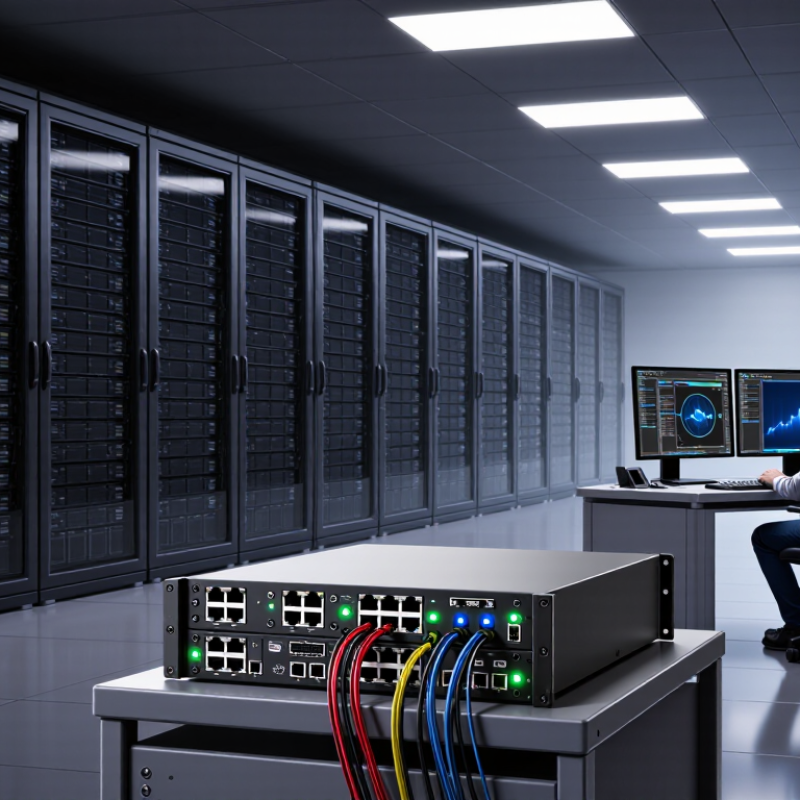
A network KVM switch is useful only when it fits the way your team actually works. Map the devices that need hands-on access: servers in a rack, systems in a small branch, or equipment in a locked room. Note who needs access, from where, and during which hours. A technician troubleshooting a blank screen at midnight has different needs from an administrator managing routine updates.
Plan for security as carefully as reach. Require individual accounts, multifactor authentication, encrypted connections, and logs that show who accessed each device. Uptime Institute’s 2024 Annual Outage Analysis found that 54% of respondents’ most recent significant outages cost more than $100,000; 16% exceeded $1 million. IBM’s 2024 Cost of a Data Breach Report put the global average breach cost at $4.88 million. That figure is not specific to remote access, but it makes weak access controls hard to dismiss.
Count the ports you need today, then leave room for growth. Check whether the switch supports your required video resolutions, browser access, and connection limits. Confirm whether you also need separate power control; KVM access alone may not let you reboot an unresponsive system. Test the interface from the network your on-call staff will use. Small details matter. It is easy to overbuy features and still miss a basic need, like clear audit records.
| Management need | What to look for | Why it matters | Questions to ask before choosing |
|---|---|---|---|
| Remote access scope | IP-based access to each connected computer’s keyboard, video, and mouse; access through a trusted network or approved remote-access gateway. | Lets authorized staff manage systems without being physically at the rack. Network reachability and firewall rules still need to be planned. | Will users connect from the local network, a separate management network, or through a VPN or gateway? |
| Out-of-band and pre-boot control | Remote console operation that works independently of the computer’s operating system, where supported by the KVM switch and target hardware. | Can help with BIOS or UEFI configuration, startup errors, and operating-system recovery when normal remote-management software is unavailable. | Does the solution provide access during boot, and have the target computers been tested for video and keyboard compatibility? |
| Number of systems and growth | Enough local ports for current systems, with a clear method to expand or manage additional switches if the environment grows. | Port capacity, cabling, rack space, and management overhead all affect the practical cost and complexity of deployment. | How many computers need access now, and how many are likely to be added? What is the supported expansion method? |
| Video and peripheral compatibility | Support for the computers’ video connectors, resolutions, refresh rates, and required keyboard and mouse behavior. | Compatibility varies by model and connection type. Mismatched adapters or unsupported display modes can cause blank screens or unreliable input. | Which video and USB connections do the target systems use? Are their display modes listed as supported? |
| Remote installation and recovery | Virtual media or another documented way to present installation or recovery media to a target system, if remote installation is required. | May reduce the need for a technician to visit the site, but availability and supported media formats differ across systems. | Do administrators need to mount ISO or other media remotely? What file formats, system types, and network conditions are supported? |
| Authentication and access control | Individual accounts, role-based permissions, secure administration settings, and integration with the organization’s identity or authentication services where required. | Restricting access by user and role helps reduce unnecessary privileges and supports consistent account management. | Can permissions be limited by user and target system? Which authentication methods and security settings are supported? |
| Audit and accountability | Logs for user sign-ins and relevant management activity, with export or central collection options if needed. | Records can help administrators investigate access issues and meet internal operational or security requirements. | Which events are recorded, how long are logs retained, and can they be sent to a central logging system? |
| Availability and operating conditions | Power and network arrangements suited to the site, plus documented operating temperature, mounting, and maintenance requirements. | A KVM switch cannot provide remote control when it has lost power or network connectivity; deployment planning should account for these dependencies. | Does the site require redundant power or network paths? Do the environmental and rack requirements match the installation location? |
| Performance and responsiveness | A remote console experience appropriate for the connection’s bandwidth, latency, and the tasks administrators perform. | Console responsiveness depends on the device, network path, and image settings. Routine server administration has different demands from graphics-intensive work. | Will access occur over a local network or a higher-latency remote link? Can the solution be evaluated on the actual network? |