A Document Camera is a camera designed to show physical items on a screen in real time. It can capture a worksheet, book page, small object, or handwritten note without requiring a scan first. In a classroom, a teacher might place a marked-up page beneath the lens and display it on a projector. Fine details matter: the camera’s resolution, focus, lighting, and position all affect what viewers can read. A shadow across a diagram can make an otherwise clear image difficult to follow. Simple, but useful.
Most models use a camera sensor to capture the image, then send it to a computer, display, or projector through USB, HDMI, or a wireless connection. Some include built-in lights, autofocus, zoom, or software for saving images and recording video. The exact features vary, so checking connection requirements before purchase can prevent an awkward setup. Some cameras also let users adjust the image live, which helps when demonstrating a page or object to a group. They are not magic, though. Glossy paper can reflect light, and tiny print may remain hard to read. A document camera can support clear instruction, but it cannot replace careful framing or good classroom visibility. Its value depends on the task—and sometimes a phone camera is enough.
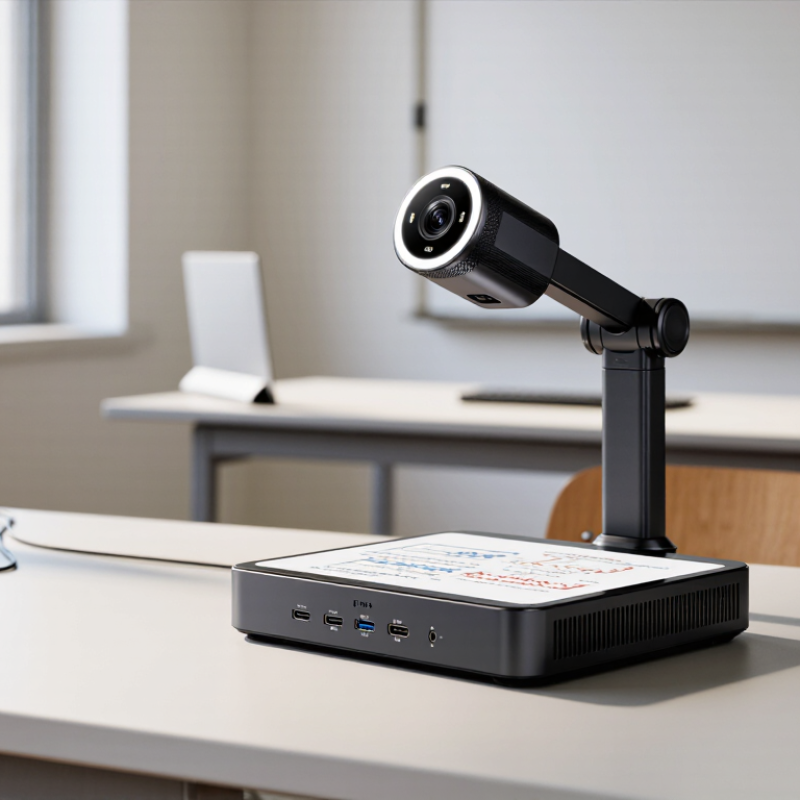
A document camera is a compact imaging device that shows physical objects on a screen. It usually has a camera mounted above a flat work area, with a light to brighten the subject. Place a worksheet, book page, small object, or handwritten note underneath, and the camera captures its image. A connected display or computer then presents that image to a group.
Unlike a flatbed scanner, a document camera can show objects in real time. A teacher might point to a sentence while students follow along, or rotate a leaf to reveal its texture. Many models also let users zoom in, focus, or save a still image. These features vary, so it is worth checking how a device connects and what file formats it supports. The picture can look uneven if the page curls or the room light creates glare. Small details matter.
Tips: Keep the camera steady and center the item beneath the lens. Move the light or page if shadows cover the text. Test focus before presenting. Simple, but useful. A quick preview can catch cropped edges or blurry handwriting before others see it.

A document camera turns a physical page, worksheet, or small object into a live digital image. Its key components work together: the camera head captures detail, the lens focuses it, and the image sensor converts light into data. A flexible arm positions the head above the desk, while the base keeps the setup steady. Small built-in lights help reduce shadows on glossy paper. Useful, but not magic.
Resolution affects how clearly fine print appears. A 4K UHD frame contains 3,840 × 2,160 pixels, or about 8.3 million pixels, according to the Consumer Technology Association’s UHD display specifications. The sensor, lens quality, focus, and lighting still matter; a high pixel count alone cannot rescue a blurry image. The connection also counts. USB-IF’s USB 3.2 specification defines data rates up to 5 Gbps for USB 3.2 Gen 1, which can support faster image transfer than older USB connections. Actual performance depends on the camera and computer.
Tips: Test the camera with a page of small text before presenting. Keep the lens centered, adjust the lamp to soften glare, and check focus after moving the arm. A slightly uneven page can still look imperfect on screen. That is worth checking.
| Component | What It Is | How It Works | Typical Use or Feature |
|---|---|---|---|
| Camera head and lens | The part that captures the image of an object, page, or other material placed below it. | The lens gathers reflected light and focuses it onto the image sensor. Focus and zoom controls, when available, adjust sharpness and framing. | Used to show books, worksheets, small objects, or demonstrations to a larger audience. |
| Image sensor | An electronic sensor inside the camera that converts incoming light into image data. | The sensor records the scene as digital pixels. The camera processes those pixels into a still image or live video signal. | Image detail depends partly on sensor resolution, lighting, focus, and the output settings. |
| Support arm or stand | A structure that holds the camera head above the viewing area. | It positions the camera at a useful height and angle. Adjustable or folding designs can help users frame different-sized materials. | Provides a stable overhead view of a page, object, or work surface. |
| Base and capture area | The supporting platform or marked surface beneath the camera. | The material is placed within the camera’s field of view. The base helps keep the document or object steady while it is displayed. | Some models include a working surface; others are designed to capture materials placed on a desk. |
| Illumination | Built-in lights, commonly LED lights, that illuminate the capture area. | Light helps the camera sensor capture a clearer image, especially when room lighting is dim or uneven. | Adjustable lighting can help reduce shadows and improve visibility of printed text or objects. |
| Focus, zoom, and image controls | Physical buttons, dials, or on-screen controls for adjusting the captured view. | Depending on the model, these controls can focus the image, change magnification, rotate the view, or adjust exposure. | Useful for switching between a full-page view and close-ups of details. |
| Connectivity ports | Connections used to send image or video signals to another device or display. | USB can connect a camera to a computer; HDMI or similar video outputs can connect to compatible displays. Available connections vary by model. | Enables live projection, computer-based presentation, or capture in compatible software. |
| Software and image processing | Built-in firmware or optional computer software that manages the camera’s image. | It can transmit live video and may provide tools such as image capture, annotation, rotation, or digital zoom. | Features depend on the camera and the software or presentation system being used. |
| Power source | The electrical supply that operates the camera and its lighting. | Power may come from an adapter, a USB connection, or a built-in battery, depending on the design. | Check the device’s power requirements before connecting it to a computer or display setup. |
A document camera captures a page much like a digital camera, but its optics are arranged for close, steady viewing. Light from the room or an integrated lamp reflects off the paper and passes through a lens. The lens focuses that reflected light onto a CMOS image sensor. Tiny sensor pixels convert incoming light into electrical signals; the camera then turns those signals into digital pixel values. Small details matter. A curled corner or glossy diagram can create shadows or glare.
The camera’s image processor adjusts exposure, color balance, and sometimes sharpness before sending the frame to a display or computer. These adjustments help text appear readable, though aggressive sharpening can make thin lines look jagged. A useful reference point is the USB-IF USB 2.0 specification, which gives a signaling rate of 480 Mbit/s. By calculation, uncompressed 1920 × 1080 video at 30 frames per second and 24 bits per pixel requires about 1.49 Gbit/s, before overhead. Compression or a faster connection may therefore be needed.
Focus and lighting shape the final image. Even good sensors struggle when the page sits outside the focal plane or a hand blocks the lamp. In practice, place the document flat, leave a little margin around its edges, and check that small print stays crisp. Not every capture is perfect. A slight shadow can still hide a punctuation mark.
A document camera sends a live view of a page or object to a display. Its camera sensor captures the scene, and a connected computer or display receives the image through a cable or wireless connection. The image can then appear on a classroom screen, monitor, or video-call window. A teacher might place a worksheet beneath the lens, enlarge a tiny diagram, and point to one line as the class watches. Small details matter. Uneven lighting can wash out pencil marks, while a glossy page may reflect the lamp. Adjusting the camera angle or focus often helps, though it is not always instant.
Sharing follows a similar path: capture the image, then route it into presentation or meeting software for remote viewers. A still image can be useful when motion is unnecessary; live video helps demonstrate folding, drawing, or handling an object.
The ITU’s Facts and Figures 2023 reports that 67% of the world’s population used the internet, while 2.6 billion people remained offline. Access is not universal. UNESCO’s 2023 Global Education Monitoring Report says internet access reached 40% of primary schools globally, compared with 50% of lower-secondary and 65% of upper-secondary schools. These figures make network access a practical part of sharing, not a minor technical detail.
I still find one limitation easy to overlook: a sharp image in the room may look blurry to remote viewers, especially when the connection is weak.
A document camera is useful whenever people need to see a physical item clearly without passing it around. In classrooms, teachers use one to display worksheets, book pages, maps, or small objects on a screen. They can point to a sentence, mark a diagram, or solve a math problem while students follow each step. No special setup is needed. A stable surface and even lighting usually help. For remote lessons, the camera can show handwriting or a science demonstration that may be hard to explain with slides alone. Small details matter.
These cameras also support office training, meetings, and creative work. A trainer might display a form and explain where each entry belongs, while a team can review a printed chart together. Artists and craft instructors can show close-up techniques, such as folding paper or blending colors. In libraries, staff may use a camera to present fragile pages without asking viewers to handle them. However, results depend on focus, lighting, and camera position. Glare can hide pencil marks, and a hand may block the view. It is easy to overlook that. Testing the setup with the actual page or object often reveals problems before an audience does.
A document camera captures a live image of a page or object and displays it on a screen. Resolution affects how much detail is visible—for example, when showing small text, diagrams, or the features of a 3D object.
Common uses: displaying printed materials, demonstrating hands-on steps, examining small details, and sharing handwritten work with a group. The chart compares standard video resolutions; it does not represent specifications for a particular document camera.